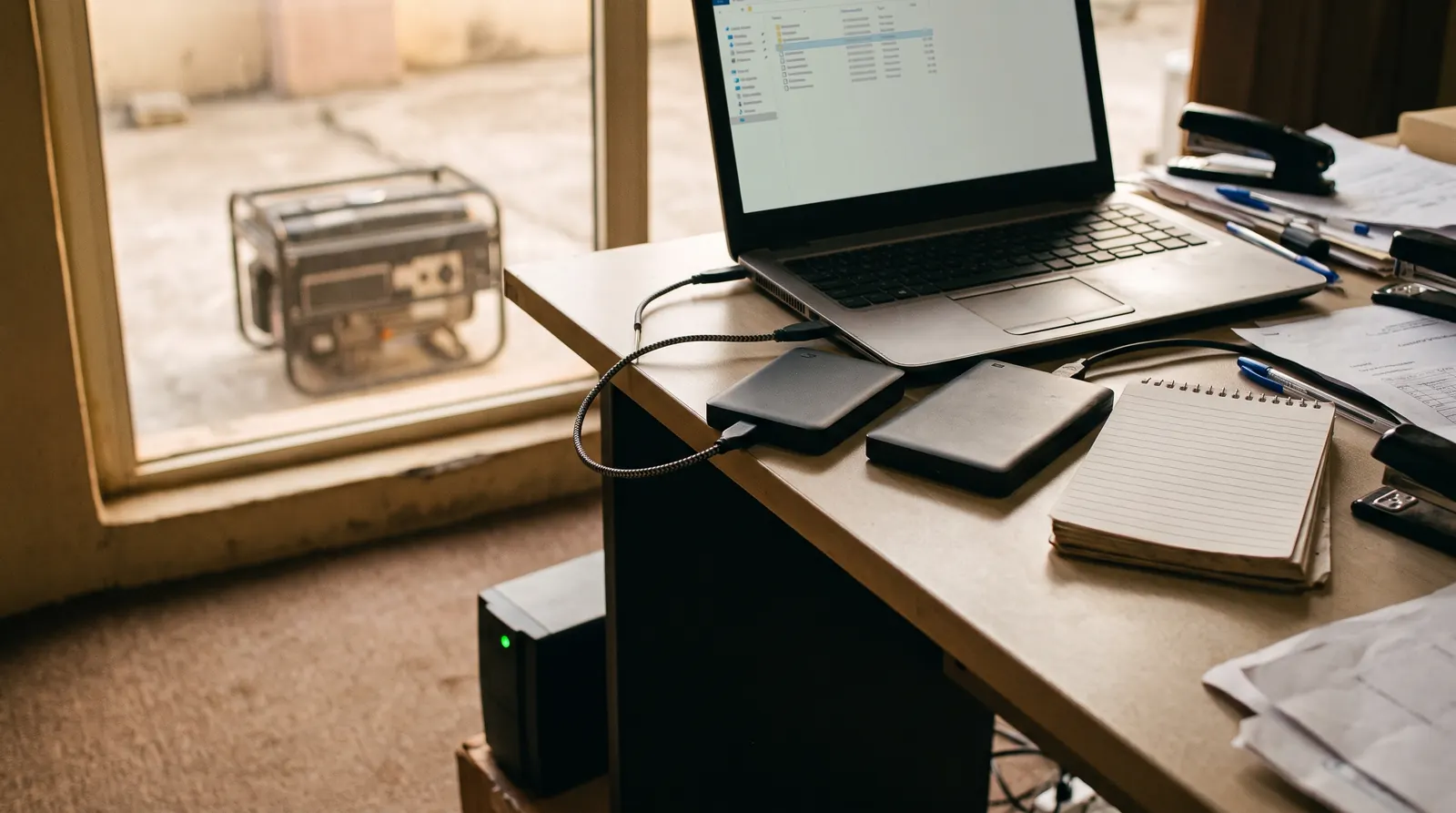
Most small offices do not lose data because they never thought about backups. They lose it because the backup they thought they had was not really a backup: a folder that syncs deleted files away, an external drive that sat in the same room as the laptop, or a copy that nobody ever tried to restore.
A good backup plan for a small office is not complicated. It needs three copies of your important data, in two different places, and one restore you have actually tested. This guide walks through setting that up.
Start with what you would miss
Before choosing any tool, list what would hurt most if it disappeared tomorrow. For most small businesses it is some mix of:
- Accounting records and invoices
- Customer lists, contracts and correspondence
- Staff records and payroll
- Project files, designs or client deliverables
- The one spreadsheet that runs the business
Then note where each one lives today. You will usually find important files spread across personal laptops, phones, WhatsApp chats, an email inbox and a shared drive. That spread is the first problem to fix, because you cannot back up what you cannot find.
The 3-2-1 rule
The 3-2-1 rule is the simplest backup standard that works:
- Three copies of anything that matters: the working copy plus two backups.
- Two different kinds of storage, so one failure cannot take out everything. For example, a cloud service and an external drive.
- One copy off-site, so a fire, flood, burglary or failed power surge at the office does not destroy every copy at once.
For a small office, that usually looks like this: files live in one shared cloud location, such as OneDrive, SharePoint or Google Drive; a backup service copies that cloud data somewhere separate every day; and an encrypted external drive holds a weekly copy that is kept away from the office.
Plan around power, not against it
In Nigeria, power is part of the backup plan. Sudden shutdowns corrupt files, damage drives and interrupt backups halfway through. A few habits make a big difference:
- Put the computer or small server that holds shared files on a UPS, so it can shut down cleanly when the generator switches over.
- Schedule backups for a time you know there will be power, such as while the generator runs in the afternoon, not overnight when the office is dark.
- Choose backup tools that resume after an interruption instead of starting again from zero.
- Keep external drives unplugged when they are not in use. A drive that is always connected can be hit by the same power surge or ransomware as the computer.
Make someone responsible
Backups fail quietly. A licence expires, a drive fills up, or a new staff member saves everything to their desktop, and nobody notices until the day a file is needed. Give one person the job of checking the plan, with a short routine:
- Weekly: confirm the last backup completed and swap the external drive.
- Monthly: restore one real file from the backup and open it.
- Quarterly: check that new staff, new folders and new systems are included.
Ten minutes a week is enough if it actually happens.
Test the restore
A backup that has never been restored is a hope, not a plan. Pick a file you would genuinely need, such as last month's accounts, delete a copy of it, and restore it from each backup. Time how long it takes. If it takes a day and your business cannot wait a day, you now know that while it is still cheap to fix.
Test a bigger scenario once a year: if a laptop is stolen today, how quickly can that person be working again, and with what? The answer tells you what the plan is missing.
A one-week setup
If you are starting from nothing, this is a realistic first week:
- Day 1: List what matters and where it lives.
- Day 2: Move shared files into one cloud location with proper folders and permissions.
- Day 3: Turn on a backup service for that cloud data and for email.
- Day 4: Buy two external drives, encrypt them and take the first copy.
- Day 5: Restore a file from each backup, write down who checks what and when, and put the UPS in place.
None of this needs a big budget. It needs a decision and a routine. If you would like help setting it up, our helpdesk support and cloud solutions teams do this for small offices every week. Talk to us.